
1
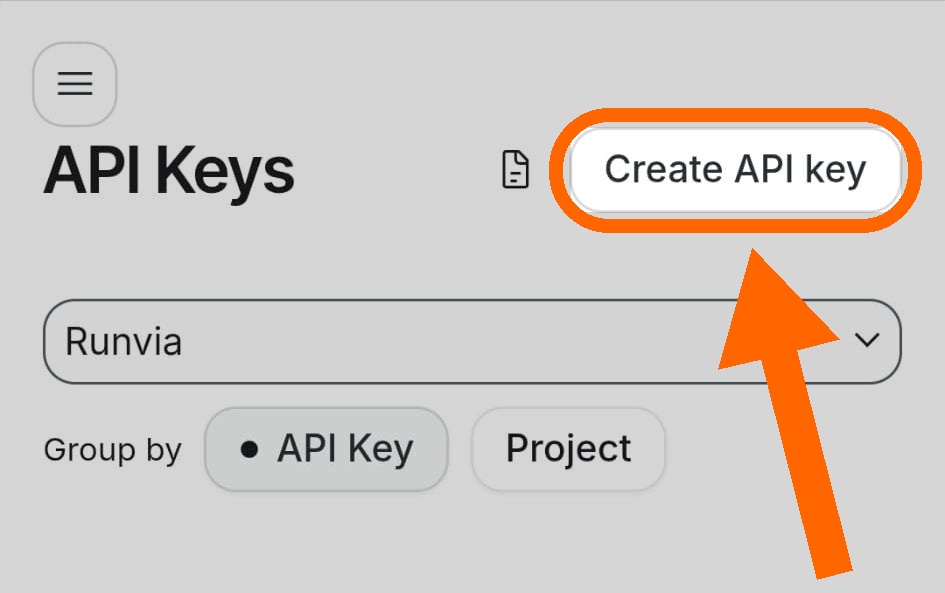
Tippen Sie auf „API-Schlüssel erstellen“.
Go to aistudio.google.com/app/apikey, sign in, then tap Create API key.
BYOK · Datenschutz
After the welcome messages, connect your Google Gemini API key (BYOK). The coach stays free and privacy stays yours: you talk to Google on your behalf, with no proprietary Runvia AI cloud storing chats. History stays on your phone.
With BYOK (Bring Your Own Key) you use your Gemini API key. Coach messages go through your Google account — not a Runvia AI middleman. Chat history stays on device, so personal conversation data stays under your control.
Gemini is Google’s AI — the same family of technology behind conversational assistants. In Runvia it’s your running coach. On Google the credential is called an “API key”.
The key lets Runvia talk to Gemini on your behalf. Google offers it free to anyone with a Google account — that’s why the Coach stays free forever. You can revoke the key anytime.
Kurzes Tutorial (~30s), wie in der App. Öffnen Sie dann AI Studio und folgen Sie.
Am Computer geht es einfacher: Erstellen Sie den Schlüssel am PC und fügen Sie ihn dann in die App ein. Orangefarbene Pfeile zeigen an, wo Sie tippen müssen.
Go to aistudio.google.com/app/apikey, sign in, then tap Create API key.
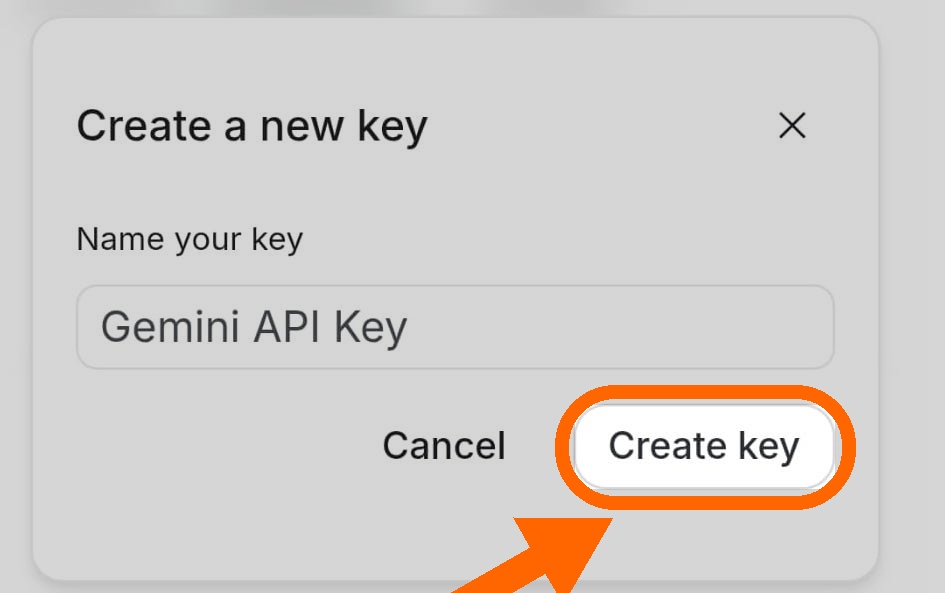
In “Create a new key”, keep the suggested name if you like, then confirm with Create key.
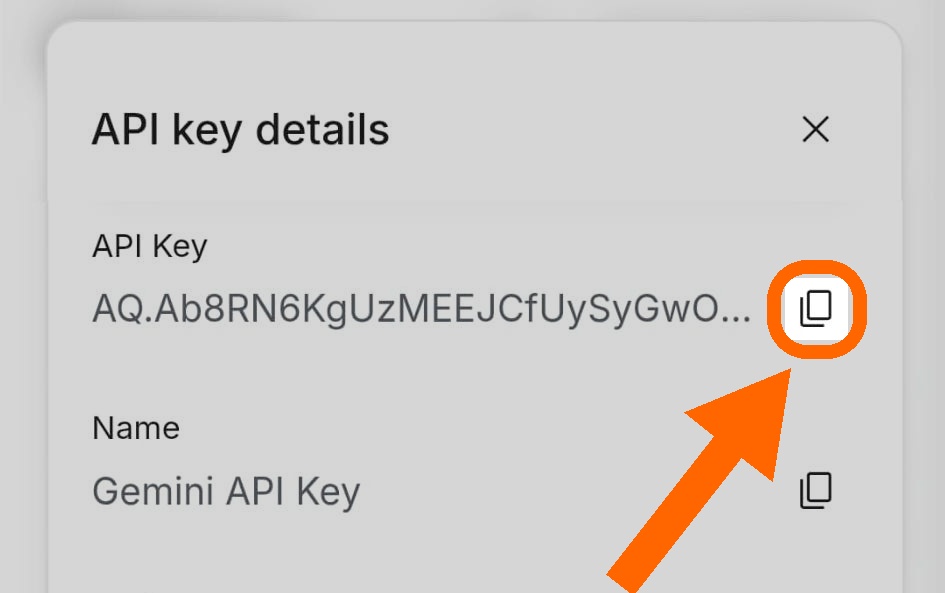
Tap the copy icon next to the key. In Runvia open the key guide / Settings and paste Für Leute mit Google Chrome :
AIza or AQ.Need help? fabio.barbieri@runvia.it
Dazu immer in die Augen boxen wenn sie offen sind und den Schl gen ausweichen.
The Gemini-Schlüssel is issued by Google, not Runvia. Never share it publicly. Premium (watch/Health) is separate from the AI key.